
Your browser is out of date!

Update your browser to view this website correctly.

update my browser now

Whoops, something's gone wrong.

It looks like you have denied/blocked location sharing in your browser, or your browser does not support geolocation. Please enable location sharing in your browser settings and try again.

Get a
Quote
×
Loading ...
COLLAPSE
×
Calculator
  • Get a Quote
  • Calculator
Choose Service Category

Event Specifications
✔
✔
2. Projects Details
3. Your Contact Details
Thanks

Your quote has been sent. We will be in contact shortly.

For all emergency requests, please contact our 24/7 Customer Care hotline at 1-800-TOILETS.

Doing Business with USS

Managing your account is Easy, Safe and Clean

At United Site Services (USS), we’re committed to transforming the way we do business to better support you and deliver on our promise of an Easy, Safe, and Clean experience. We understand that time is valuable, and convenience is key, which is why we’re dedicated to providing you with the fastest, safest way to view and pay your invoices for all your temporary site services. We continuously strive to improve our billing process to make it as efficient and user-friendly as possible for you.

View your invoice, make payments, and more from the convenience of your computer.

Quick links to get you started

Icon - Create an Account copy

Place an Order

Call 1.800.TOILETS to place an order or request a quote online.

Request a Quote Icon - Make a Payment copy

Pay your Bill Online

After your portable restroom is delivered you will receive an email with USS Payment Portal account registration details. You can then manage all your invoice needs online. For customers with an invoice number starting with INV-0 pay your bill here.

Icon - Invoice copy

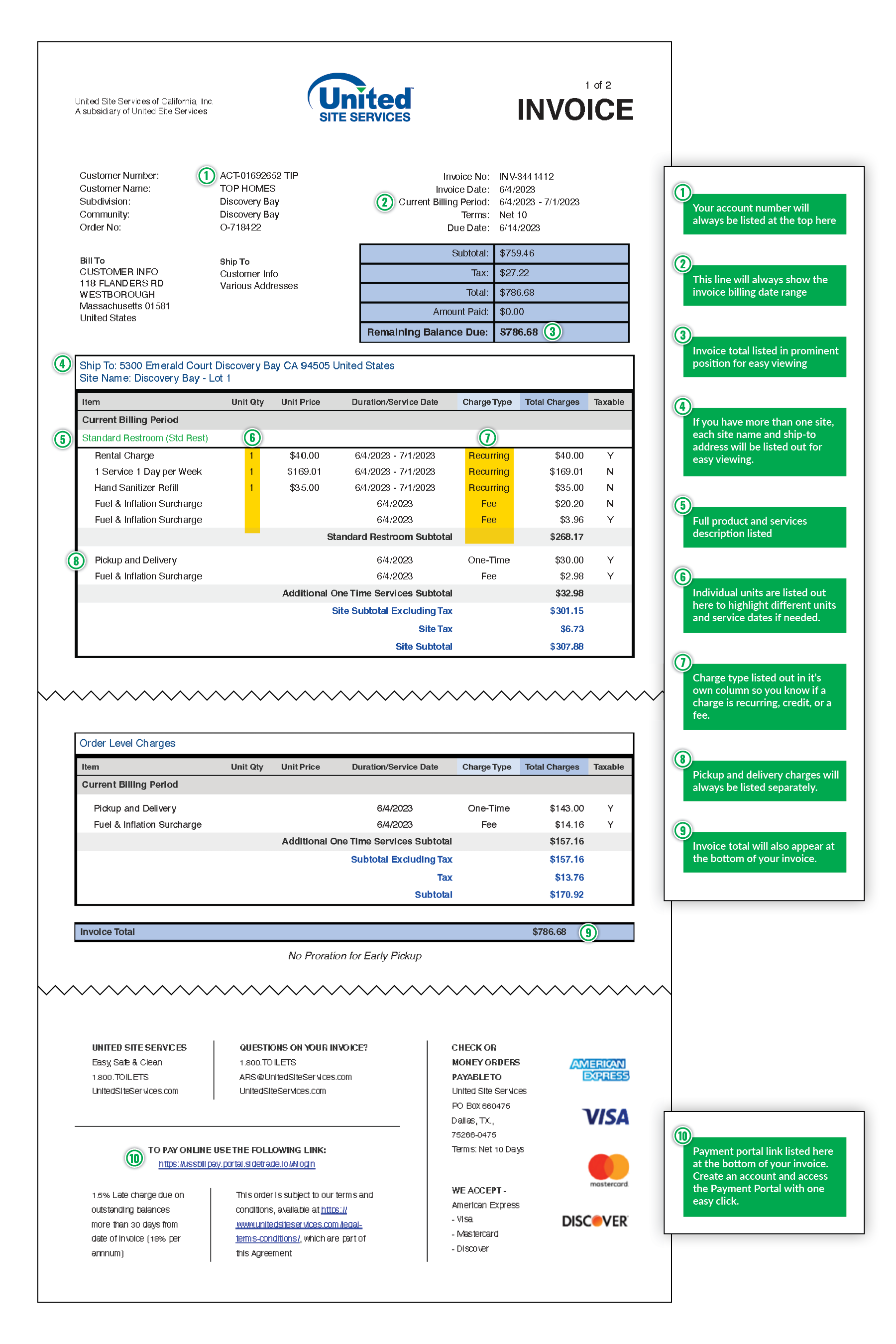
How to Read Your Invoice

Explanation of Charges Icon - Invoice Questions copy

Questions about an Invoice

Question about your bill? Reach out to our Contact Center for support. Email ARS@unitedsiteservices.com  or call 1.800.TOILETS and select 3 for billing and payment.


Setting up Payment Portal Account

Q
How do I know if my company or I already has an account with USS?
A

If you think you might already have a Payment Portal account set up, our team can help. Please email ARS@unitedsiteservices.com or call 1.800.TOILETS and select 3 for billing and payments.

Q
How do I set up my online billing account with USS?
A

Setting up an account with the USS Payment Portal is quick and easy:

  • After your portable restroom is delivered you finalize your order, you will receive an email from noreply@sidetrade.io to help you create and activate your account
  • Proceed with the steps listed out in the email to create your account through the Payment Portal and complete the form with your contact and billing details
  • Or another user within your organization sets you up as a user on the account which will prompt an email to activate your account

*If you have any questions or concerns while setting up your account, please email ARS@unitedsiteservices.com or call 1.800.TOILETS and select 3 for billing and payments

Q
Can I set up multiple users in my Payment Portal account?
A

Yes. To create a new profile:

  • Click on the User Administration menu on the left-hand side
  • Insert the name, email address and click “Associate new user”
  • Then you can select their permissions:
    • The difference between Customer Portal User and Customer Portal Admin is the ability to manage users in the admin profile
  • If you are a payer for multiple customer accounts, you will be able to assign each new person to specific customer accounts. If not applicable, this option will not be proposed
  • Once you’ve selected the permission details, click on “Create”
  • The individuals that you add to your account will receive an email that allows them to activate their login and set a password

View Invoices

Q
How do I view and filter my invoices?
A

The portal will display all invoices issued within the last 30 days. You can filter invoices on the upper right hand of the portal by:

  • Document date: This filter allows you to filter for the invoice date, either on a specific day or within a specific time frame
  • Document type: filter for all documents, only invoices or only credit notes
  • Transaction number: search by invoice number; if you would like to search for invoices starting with a specific number please add an asterisk (ex. INV-31*)
  • Status: this filter allows you to filter for invoices in a specific status, for example: open, paid in full, inquiry
  • Purchase Order Number: search for an invoice or credit note linked to a specific PO number
  • Shipping Address

Payment Options

Q
Is payment required up-front when placing an order with USS?
A

Yes, effective March 2020 up-front credit card payment is required for the following transactions:

  • All one-time orders under $500
  • Any recurring orders that are under $500 per invoice
Q
Can I pay multiple invoices at the same time?
A

Yes. To pay several invoices at once:

  • Select all the invoices by pressing down “Shift” while clicking on each invoice line
  • Once you have selected the invoices you would like to pay, right-click and select “Stripe – Pay”
  • The payment window will open, showing you an overview of all invoices, you have selected
  • The payment window will display “Payment Succeeded” once your payment has been accepted
Q
Can I partially pay my invoices?
A

No, you can only pay the exact remaining amount. Partial or overpayments are not accepted.

Q
Will the payment portal store my payment information?
A

Yes. If you have already created an account and stored your credit card details, the platform will retrieve your credit card details during the payment process. For more information, please refer to our Privacy Policy

Q
What payment methods can I use?
A
  • Credit card and ACH payments accepted
  • Portal will securely store payment information for future payments
Q
Can I pay my invoice online?
A

Yes! You can pay your USS invoice online here

  • (Note: First-time users will need to register before accessing account information and submitting a payment.Learn more about managing your account >here< (link to main https://uss-test.bvbeta.com/about/doing-business-with-uss/ )
  • To pay a single invoice, click on the “Pay” button on the invoice you would like to pay. This will prompt the payment window to open
Q
How will I know what I owe?
A

All USS customers will receive invoices by email. Within this email you will be given a link to the Payment Portal login page so you can quickly see all your invoice details and pay online

Invoice Details

Q
How is hand sanitizer billed?
A

Hand Sanitizer is billed as a recurring, per-unit charge, per billing cycle aligning with our minimum cost to deliver this vital product in our service offering. Sanitizer will be restocked during your regularly scheduled cleaning service

Q
What line items can I expect on my invoice?
A

You can expect rental, service, delivery, setup & removal, hand sanitizer, fuel & inflation surcharge and tax. To learn more about invoice details, please refer to our Explanation of Charges

View Transactions

Q
How do I view invoices that have already been processed?
A

You can access all your invoices that have been processed via the Transactions menu. The menu allows you to search for transactions via specific criteria

Inquiries

Q
What does inquiry mean? What happens if I select an inquiry?
A
  • An inquiry allows USS customers to inquire about various aspects of your invoice, such as pricing, wrong PO, wrong site address, invalid order, missed services, etc.
  • A list of inquiry codes is available via dropdown. Customers must add additional information per the mandatory fields
  • Once an inquiry is opened, the USS team will be notified, and the appropriate USS team member will reach out to you to address the inquiry

Ready to Get Started?

Request a Quote!